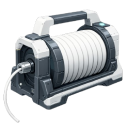
| Item | SpoolTool |
|---|---|
| Module | ARCHEAN_build |
Description
The Spool Tool is used to place cables and pipes that connect components together, allowing the transfer of data, energy, items, or fluids between them.
Spool Types
Press C to open the spool selection menu. There are 5 types of spools available:
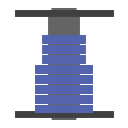
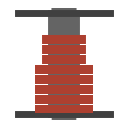


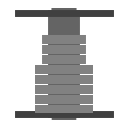
| Type | Color | Usage |
|---|---|---|
| Data Cable | Blue | Connect data ports for information transfer |
| Low Voltage Cable | Red | Connect low voltage power ports |
| High Voltage Cable | Orange | Connect high voltage power ports |
| Fluid Pipe | Gray | Connect fluid ports for liquid/gas transfer |
| Item Conduit | Dark Gray | Connect item ports for item transfer |
Each spool type can only connect compatible ports. Spools can be stacked in your inventory and the remaining length is displayed on each spool item.
Usage
Selecting Spool Type
Press C to open the spool selection menu and choose the type of cable you want to place.
Creating a Cable (Connecting Two Components)
- Aim at a component's connector and left-click to start the cable
- Click to add intermediate points to shape the cable path
- Aim at the destination connector and left-click to complete the connection
During cable creation:
- Right-click removes the last placed point (or cancels if no points exist)
- Scroll wheel cycles through alternative auto-path-finding routes
- Hold Shift to snap cables to component surfaces
- Hold X to place the cable on the inner face of blocks/components
Auto Path-Finding
The Spool Tool features automatic path-finding that suggests cable routes. Use the scroll wheel while placing to cycle through different route permutations.
Creating a Flexible Cable
To connect components on different builds:
- Start the cable on one build
- End it on another build's component
This creates a Flexible Cable that:
- Links the two builds together physically
- Is constrained by the physics engine
- Has no force limit (won't detach)
- Is affected by gravity
You can also create a flexible cable between two components of the same build by holding X.
Deleting a Cable
Hold right-click then quick press left-click on an existing cable to delete it.
Painting Cables
Use the Paint Tool to customize cable appearance:
- Normal painting changes cable color
- Hold Shift for a striped effect
- Hold X to replace color on all matching cables
- Combine both for transparent stripes
Tips:
- If a cable refuses to be created, you may not have enough length remaining in your spool
- Cables have no transfer limit or loss related to length
- Cables do not determine transfer direction
- A cable cannot be modified once placed - you must delete and recreate it
- Flexible cables affect performance more than normal cables - prioritize normal cables when possible
- Tools can use items from external containers by placing the tool inside that container